Pages

Receive More Updates

Date: - Time:
SMS: Send FOLLOW BALLOWAP To 40404 For Free - EMAIL: azeezbello8@gmail.com

Monday, 6 April 2015

How I Add Facebook Comment Form To WordPress Blog Without Plugin

Placing Facebook comment form on WordPress blogs is possible without having to install any plugin. I added the Facebook comment form under the blog posts at mobilitaria.com without using any plugin. You too can. Just follow me through the steps below.


For you to add the Facebook comment form to your blog, you will need the Facebook Application ID of the blog. If you know the ID, copy it somewhere and if you don't know it you can check the Facebook apps page.


You can read: How To Get Facebook Application ID to generate one for your blog.


Next is to sign in to your WordPress dashboard and go to "Appearance" > "Editor"


==> Find Header (header.php) on the sidebar and click on it.


==> Carefully find the <body tag below the closing <head tag

==> Paste the code below, directly below the <body tag


<div id="fb-root"></div>

<script>(function(d, s, id) {

var js, fjs = d.getElementsByTagName(s)[0];

if (d.getElementById(id)) return;

js = d.createElement(s); js.id = id;

js.src = "//connect.facebook.net/en_US/sdk.js#xfbml=1&appId=1569785879914041&version=v2.3";

fjs.parentNode.insertBefore(js, fjs);

}(document, 'script', 'facebook-jssdk'));</script>


==> Carefully replace the highlighted appID with the ID of your blog

==> Click "Update File" button


==> Find Comments (comments.php) on the sidebar and click on it.


==> Paste the code below at the top as seen in the screenshot below the code:


<br>

<div style="text-align: center;">

<div class="fb-comments" data-href="<?php the_permalink() ?>" data-num-posts="8" ></div>

</div>

<br/>


==> Click "Update File" button.


View one of your blog posts and you should see the Facebook comment form displayed.


I hope it works for you.


NB: Mobilitaria uses Jarida theme as at the time of publishing this post. Although, I have restyled it to my taste, you can get the Jarida theme here


Recommended: How To Add Facebook Comment Form To Blogger.


Friday, 20 February 2015

Facebook Call To Action Button Tips For Page Owners

Late last year, a new Facebook call-to-action feature that will help Pages drive business objectives was announced by Facebook. The button is one of Facebook’s coolest new tools for page managers - and it's currently been rolled out worldwide.


Designed to bring a business’s most important objective to the forefront of its Facebook presence, call-to-action buttons link to any destination on or off Facebook that aligns with a business’s goals.

Page admins can select from a group of call-to-action buttons. The seven calls to action available are:


  1. Book Now

  2. Contact Us

  3. Use App

  4. Play Game

  5. Shop Now

  6. Sign Up

  7. Watch Video


You can use the Call-to-Action button to link anywhere you’d like to drive traffic.

For example, NairaForSMS used the “Sign Up” call-to-action to link to the sign up page on NairaForSMS.


facebook call to action button for Nairaforsms


You can use the "Contact Us" call-to-action button to link to the "Contact Us" page on your blog or use the "Sign Up" button to link the newsletters opt-in page on your site. 


How To Add Facebook Call To Action Button To Facebook Page


==> Go to your Page’s cover photo and click Create Call-to-Action.
==> Choose your call to action and enter the destination URL that you want to link to.

==> Select "Website" option for iOS and Android if you don't have apps for those platforms.
==> Click Create.

Once you've created a call-to-action button, you can track the number of people who have clicked on the button.


How To Track How Many People Clicked Facebook Call To Action Button


==> Go to This week on the right side of your Page and then look under Call-To-Action clicks to see how many people have clicked your call to action that week.

Have you created a call to action button for your Facebook page? Are you getting some good results with it so far?

Tuesday, 27 January 2015

How To Change a Fan Page to Local Business Page on Facebook

Creating a Facebook page for your business is an excellent way to gain exposure for your business and actively engage with clients. As at the time of publishing this post, there are 6 types of Facebook pages and if you need to create a page for your business, the Local business or Place type is highly recommended.


This Facebook Page type enables you to provide information about your business, store hours, location, website, parking information, price range and a general description. It also have supports for maps as well as customer reviews.

If you've created a page for your business but not listed as a Local Business, you can easily change the category to "Local Business/Place". I changed NairaForSMS Facebook Page from "Website" category to "Local Business or Place" category as indicated in the screenshot below:


nairaforsms


How To Get Started

    ==> Click About below your Page's cover photo
    ==> Click Page Info in the left column
    ==> Hover over the Category section and click Edit
    ==> Select a category from the first dropdown menu, then select a more specific category from the second dropdown menu
    ==> Click Save Changes

NB: There's no limit to the number of times you can change the category of your Page.

That's all.


If you don't know the much about the differences beween the Facebook page types, the screenshot below should help:


Best Regards!


Wednesday, 19 November 2014

Free Ebook On How To Get Your Facebook Group's Members Involved

After creating my personal Facebook group today, Facebook recommended I check out some tips on how to get my group's members involved. The tips were compiled in a pdf file. I downloaded, read through it and I've decided to share it with you too.


The few simple tips will help you increase likes, comments, and posts from the members of your group. The tips are based on what other admins have found to be successful in their own groups.


Facebook logo


List of Tips


  1. Tell people why you created the group

  2. Give some examples of things to post

  3. Welcome new people

  4. Let members know they can invite others

  5. Give the group time to get going

  6. Comment on posts by members

  7. Look for interesting things to post

  8. Ask questions

  9. Tag people in posts

  10. Check in at least once a week.


The tips above are further explained with sample screenshots in the free book. I've uploaded it to the "Files" section of my Facebook group.


Download, read and share with friends.


Wednesday, 29 October 2014

How To Merge Facebook Pages Into One

If you are an admin of multiple Facebook Pages that represent the same thing, you may be able to merge them. Merging Pages combines all your likes and check-ins into one Page. Merging Pages combines all your likes and check-ins, but all other content such as posts, photos and the username will be permanently deleted from the Page you merge.


The Pages that you merge must be about the same thing. If it's not clear that your Pages represent the same thing, they can't be merged.


Examples of acceptable merge requests:


"Jide Ogunsanya NigerianBlogger" into "Jide Ogunsanya Nigerian Blogger"

"Blogging Tips by Jide" into "Blogging Tips by Jide Ogunsanya"


 Examples of merge requests that require a 14-day waiting period:


"Facebook" into "Facebook Chat"

"Jide Ogunsanya" into "Jide Ogunsanya's Blogging Service"

 Examples of merge requests that can't be processed:


"Fans of Jide" into "Jide"


So, How Do I Join Facebook Pages Together?


==> Log in to your Facebook account as yourself and not your page

==> Click Settings at the top of the Page you want to keep

==> Click "General"

==> Click the "Edit" link next to "Merge Pages"


==> Click Request to merge duplicate Pages

==> Fill out the form and click "Send".


If successful, you will see this:


Thereafter, keep calm till you get feedback from Facebook.


Unable To Find "Merge Pages" Option On Settings Page?


If you don't see the option to merge your Pages, it means that your Pages can't be merged at this time.


Neverthesless,you can try to submit a request at : https://www.facebook.com/help/contact/?id=238908726149664


Right there, you will have options to select the Page you want to keep and also select up to 5 Pages you’d like to merge into your destination Page.


That's all.


NB: You can only merge Pages that you manage. Do not submit duplicate requests because you might have to wait for 14 days as stated earlier. So, just chill.


I hope it helps.


If you've been able to merge Facebook Pages? Kindly share your experience.

Wednesday, 23 July 2014

How To Save Facebook Links In News Feed To Read Later On FB

Facebook, the world’s largest social network has announced the launch of a new feature, tagged "SAVE". The Facebook SAVE feature simply allows Web, Android and iOS users to save links, places, music and other things while browsing Facebook News Feed, to a list where they can view them later.


So, anytime you find all sorts of interesting items on Facebook that you don't have time to explore right away, you can now save them to check them out later when you have more time. If you use the feature to save for later on Facebook, only you can see the things you save and you can choose if you want to share them.


You can view the items you saved at any time by going to your saved items in the “More” tab on mobile or by clicking the link on the left hand side of Facebook on the web. Your saved items list is organized by category and you can share each item with your friends or move it into your archive list. Right there you can as well delete each saved item.


Categories of Items Saved on Facebook


How To Save on Facebook


To save something you see on Facebook (links, places, music, books, movies and TV shows), tap the Save icon or choose the Save option in the menu on posts in News Feed to save it for later.


Save items on Facebook


How To Find Saved Items


From News Feed, click on Saved in the navigation links.


find saved items on Facebook


That's all.


What's your take on this new feature?


Friday, 23 May 2014

Facebook Ask Lets You Find Out Relationship Status of Friends and More

Facebook has unveiled a new feature, called Ask, that lets your friends request that you share your hometown, current city, address, phone number, work and relationship status, if you haven’t already filled them out on Facebook.


When your Facebook friends visit the “About” section of your Facebook timeline (on desktop or mobile), they will see the "Ask" button or link. Friends that click on it to request for info not present on your timeline, can also add a note to explain why they are requesting for the information.


facebook ask


Facebook ask feature


You will be notified of the Ask requests via Facebook notifications and if you don’t want to provide the info to the requester, you can simply not respond to the request. If you choose to answer, this information is then added to your profile. By default, only you and your friend can see it, and you also have the option of sharing it with others, too.

NOTE:


==> There is no way to turn off the Facebook Ask feature as at the time of publishing this post.

==> If you tell a friend something different (relationship status) from the person who asked before, your relationship status will change universally on Facebook, even if you select only share this info” with the person asking. Friends you've previously shared your relationship status with in the past will be able to see that change if they manually return to the About section of your Facebook timeline. So, be wise!

The boy who added you as a friend yesterday, who you never spoke to or a girl who got attracted to you by your Facebook swagg might soon be asking you for your relationship status.

Teens who might be spying on a crush via Facebook. Or even an older user who wants to know if their ex is still single and/or living in the same town as them will definitely find it useful.

Do you like the new "Ask" feature?

Sunday, 11 May 2014

Facebook Shortcut Numbers To Help Users Find Friends

According to a post on TheNextWeb, Facebook is currently testing a new feature called "Shortcut" by rolling it out to some Facebook users. This feature will make it easier for Facebook mobile app users to quickly find their friends on Facebook.


If you enter the unique Facebook shortcut of your friend in the "Find someone" search box of the Facebook mobile app, the app takes you directly to the friend's page. The feature will probably work like finding friends by using phone number or email address.


This might be a good alternative to finding friends using names, which atimes might be frustrating especially when there are many Facebook users bearing same name without profile picture.


The Next Web’s social media intern Carlos Sandova spotted the feature and shared the screenshot below on Twitter:


Facebook shortcut


I hope Facebook will roll out the feature to all Facebook users soon.


What's your take on this?

Friday, 25 April 2014

How I Recover Deleted Facebook Messages 2014

I woke up this morning to check my Facebook messages on my PC and was surprised when I discovered that my recent messages are no longer in my inbox. I started wondering what might caused it and I later realised that they might have been deleted when I deleted them from the Blackberry hub of my Blackberry Q10 smarthpone.


This is so annoying because I thought deleting the messages from the hub will only delete them from the BB and not from my Facebook account inbox. My BB Q10 runs on Blackberry 10 OS 10.2.0 which doesn't have any option to control how messages are deleted on the device and messaging server. I guess this is now possible with the "Delete ON" Blackkberry Hub option featured in Blackberry 10 OS version 10.2.1.

Guess what?

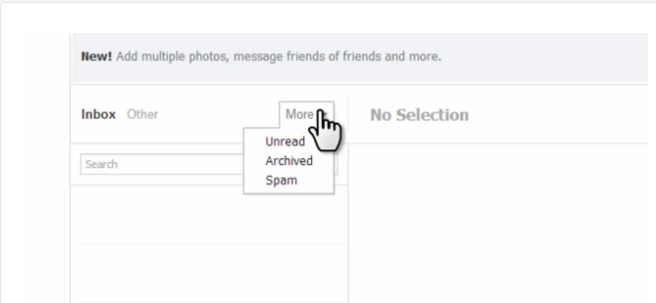
While clicking all the links in my Facebook Inbox, I discovered that the missing messages were "Archived". I was so happy when I discovered this. Instantly, I "Unarchived" all the messages and they were all restored back to the inbox. :)


Facebook Messages Inbox


So, if you want to retrieve deleted Facebook messages, you can click on the "More" > "Archived" link via your Facebook Inbox (ON PC). Beside each archived message is the "unarchive" icon which you can click to restore the message to your Facebook inbox.

NOTE: You cannot retrieve messages that you've permanently deleted.

I hope this helps.

Kindly share with Friends especially on Facebook.

Cheers!

Saturday, 15 March 2014

How I Update Facebook Status With "Via OgbongeBlog"

If you're my Friend on Facebook, you would have noticed that most of my Facebook updates are now tagged with "Via Ogbongeblog". If anyone clicks on the "Via OgbongeBlog" link in the News Feed, it takes the person directly to Ogbongeblog.com.


Well, Facebook Feed Dialog makes this possible. You can also be posting to Facebook with "Via your blog name". It's so easy.


For you to create such for your site, you will need the Facebook application ID of the site. You will have to include it in the Feed Dialog URL which you will have to create for this purpose.


If you don't know the Facebook App ID of your site, read: How To Get Facebook Application ID and Secret Key.


How To Generate Facebook Feed Dialog URL


==> Edit the code below with your appID.


https://www.facebook.com/dialog/feed?

  app_id=150436614997987

  &display=page

  &redirect_uri=http://www.facebook.com


You can also replace the www.facebook.com with a link to your site. Not compulsory to change the Facebook Feed dialog redirect_uri though.


==> Copy and paste in your browser address bar. Hit the "Enter" or "OK" button.


You should see something like this:


Facebook feed dialog


==> Type whatever you want to post to Facebook and click "Share".


That's all.


In the Facebook News Feed, it will appear like this:


Facebook feed dialog in news feed


On your Facebook Timeline, it will appear like this:


Facebook feed dialog on Timeline


Bookmark the Feed Dialog URL so you won't have to be typing it every time.You can use CTRL D to do this on PC.Your mobile browser will also have an option for such.


If you have an iPad, once the URL opens in your browser, go to the browser options and tap the "Add to Home Screen". This will create a shortcut on your iPad which you can always tap whenever you want to post to Facebook.


Try it and let me know if it works for you.


Please, SHARE this with your friends.


Hopefully soon, I hope to publish the "share to download" trick I'm using on my Free eBooks Page. So, Subscribe to updates if you don't want to miss it.


Have fun!


Thursday, 13 March 2014

Facebook Comment Form Not Working? Try This Solution for Blogspot Blogs

If you've been finding it difficult to integrate the Facebook comment box with your Blogger blog, sit back and relax as I guide you on how to add Facebook comments plugin to Blogspot blogs using HTML5.


For you to add the Facebook social plugin to your blog, you will need the Facebook Application ID of the blog. If you know the ID, copy it somewhere and if you don't know it you can check the Facebook apps page.


You can read: How To Get Facebook Application ID to generate one for your blog.


Next is to log in to your Blogger dashboard, back up your template and go to "Template" > "Edit HTML"


==> Click inside the HTML and use CTRL F to find : <body


==> Directly below it, paste <div id='fb-root'/> OR <div id="fb-root"></div>


==> Open a new tab on your browser and go to www.freehtmlparser.blogspot.com

==> Copy and paste the code below inside the box on the page


<script>(function(d, s, id) {

  var js, fjs = d.getElementsByTagName(s)[0];

  if (d.getElementById(id)) return;

  js = d.createElement(s); js.id = id;

  js.src = "//connect.facebook.net/en_US/all.js#xfbml=1&appId=522587054526444";

  fjs.parentNode.insertBefore(js, fjs);

}(document, 'script', 'facebook-jssdk'));</script>


==> Carefully replace the highlighted appID with the ID of your blog

==> Click "Encode"


==> Go back to the browser tab where you have your blog HTML


==> Copy and Paste the encoded script directly below the  <div id='fb-root'/>


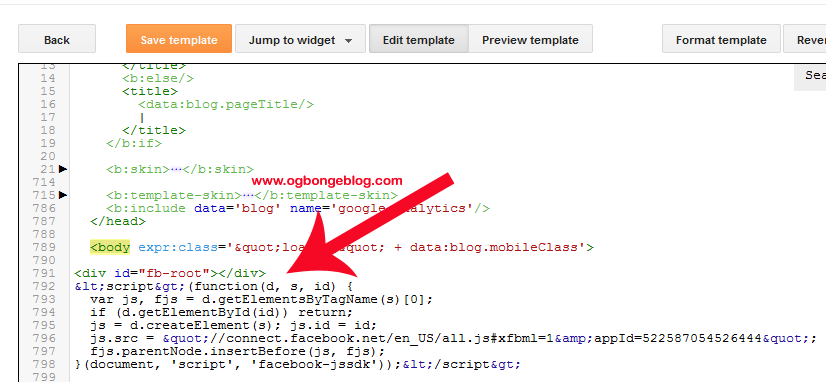
==> Now, your html should look similar to the screenshot below:


==> Click "Save Template"


==> Click inside the HTML and use CTRL F to find :


<div class='post-footer-line post-footer-line-3'>


 OR


<div class='post-footer-line post-footer-line-3'/>


 OR


<data:post.body/>


==> Directly below it, paste this code : 


<b:if cond='data:blog.pageType == &quot;item&quot;'>

<p align='center'>

<img alt='' class='icon-action' src='https://blogger.googleusercontent.com/img/b/R29vZ2xl/AVvXsEi_i6bwzBUZd9Uko4OfIk0eV0Ha_mVxz0ilZamN1zUwGZk8zGzmQPKDQdp_eN7V84Fy_JWK3bzTV91J7y4YESw5gL7iz8ESDXRbHrLVuPxrSPfbphKoUtZtJM3Nfc0ZpvOFSilCo_0IGMLT/s1600/cmds.png'/> </p>

<div style='text-align: center;'>

<div class="fb-comments" expr:href='data:post.url' data-width="100%" data-numposts="10" data-colorscheme="light"></div></div>

</b:if>


==> Click "Save Template"


That's all.


Check out the desktop view (not Mobile View) of any post on your blog and you should see the comment form below the post.


Please, let me know if it works for you.


Also use the comment form to let me know if you face some challenges.


Please, SHARE this with friends.


Cheers!


Subscribe to this blog if you don't want to miss my tutorials on how to add Facebook comment form to Blogger mobile templates and how to receive notifications On Facebook when anyone comments on your blog, using the Facebook comment form. 

Sunday, 9 March 2014

Facebook Feed Dialog Tutorial

Feed Dialog is one of the sharing options provided by Facebook for webpages. It prompts a person to share an individual story to a profile's timeline without the need of extended permissions. It's the backbone of the "share on Facebook to download" concept on my Free eBooks page. You can also use it to post to Facebook with a "via my blog name" link.


Unlike the Facebook Share Dialog, the Feed Dialog lets you customize how you want your story or update to appear after sharing it on Facebook. You can specify the Facebook feed dialog picture, title (name), caption, description etc. You can even specify how the dialog should be rendered eg Facebook feed dialog popup.


For you to integrate Facebook Feed Dialog with your website, you will need the Facebook App ID of the site.


If you don't know the Facebook App ID of your site, read: How To Get Facebook Application ID and Secret Key.


Facebook Feed Dialog Example


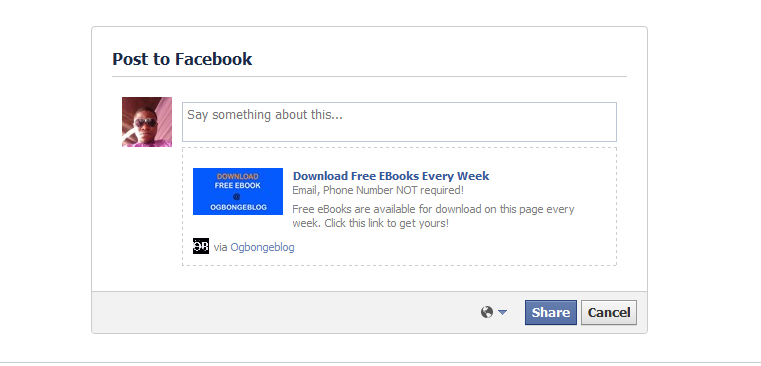
In this Facebook dialog tutorial, I will show you how to create a dialog like the one below:


facebook feed dialog with link


==> Edit the Facebook Feed dialog URL below with your appID.


https://www.facebook.com/dialog/feed?

  app_id=150436614997987

  &display=page

  &description=Free eBooks are available for download on this page every week. Click this link to get yours!

  &link=http://www.ogbongeblog.com/p/free-ebooks.html

  &redirect_uri=http://www.facebook.com

  &name=Download Free EBooks Every Week

  &picture=https://blogger.googleusercontent.com/img/b/R29vZ2xl/AVvXsEiefIWHpD39NaeVyOW3EEwMmOaspRdYju_vQmsfAZmszwQ1wm0kuse7ZDdi82Dv_CVUatRqlnGpVhEW-CzedN6sNvt7wsydVBr3PX7_YY8MndABDqwTt12HWIeN0THXUrwPb1LCg1W5s_tw/s1600/free_ebook2.jpg


Also carefully change the description, link, name as desired. Also change the Facebook feed dialog picture to a link that links to a picture you want to use.


You can change the Facebook Feed dialog redirect_uri from www.facebook.com to a link that links to a page on your site.


Once you are through with the editing, copy and paste it in your browser address bar and hit "enter" or "OK". You should see a dialog similar to the screenshot above.


If you prefer a caption to replace the link under the title (name), you can use the URL below.


https://www.facebook.com/dialog/feed?

  app_id=150436614997987

  &display=page

  &description=Free eBooks are available for download on this page every week. Click this link to get yours!

  &link=http://www.ogbongeblog.com/p/free-ebooks.html

  &redirect_uri=http://www.facebook.com

  &name=Download Free EBooks Every Week

  &picture=https://blogger.googleusercontent.com/img/b/R29vZ2xl/AVvXsEiefIWHpD39NaeVyOW3EEwMmOaspRdYju_vQmsfAZmszwQ1wm0kuse7ZDdi82Dv_CVUatRqlnGpVhEW-CzedN6sNvt7wsydVBr3PX7_YY8MndABDqwTt12HWIeN0THXUrwPb1LCg1W5s_tw/s1600/free_ebook2.jpg

  &caption=Email, Phone Number NOT required!


Take note of the caption parameter.


This will generate a dialog similar to the one below:


facebook field dialog with caption


You will notice that the link has been replaced by the caption.


That's all.


You can customize it further using the Facebook feed dialog parameters.


To create "share to download" with this, shorten the URL, then link a Facebook Share icon to the shortened URL as seen here.


I hope this helps.


If you've got questions, contributions etc kindly relay them via comments.


Cheers!

Saturday, 8 March 2014

How To Get Facebook Application ID and Secret Key

If you look closely at the Facebook Javascript SDK generated whenever you generate the code for Facebook Like box/button and other Facebook social plugins, you will notice there is a line that contains an appID. The Facebook App ID is required if you want to integrate your site with Facebook Open Graph and Facebook Insights. 


If you also want to implement a "share on Facebook to download" trick on your blog, you will also need a Facebook application ID. It's also a must-have if you want something like "Via Ogbongeblog" to be displayed in your Facebook status.


So, in this tutorial, I am showing you how to create a Facebook application to get an app ID for your blog or website.


How To Create Facebook Application


==> Go to : developers.facebook.com/setup/

==> Click on the "Create New App" button


create facebook application


==> Enter your blog/site name in the "Display Name" field

==> Leave "NameSpace" blank

==> From the "Category" drop down menu, select a category for your blog site eg Entertainment

==> Click the "Create App" button


A security check might pop up asking you to enter the displayed captcha. Enter the displayed text and click "submit". If entered correctly, you will be redirected to the dashboard of your new app which will look similar to the screenshot below;


facebook application dashboard


Take note of the AppID. You can write it down or save it somewhere you can easily access.


For the purposes of this tutorial, you won’t need your “App Secret” value.


facebook application settings


==> Click on "Settings" > "+Add Platform"


facebook application platforms


==> Select "Website" from the options. This will open up a new field as seen below:


facebook application site url


==> Enter the URL of your blog/site in the "Site URL" and "Mobile Site URL" fields as seen above.


==> Click the "Save Changes" button


==> Scroll up and enter your domain name in the "App Domains" field


facebook application app domains


==> Enter your email address in the "Contact Email" field.

==> Click the "Save Changes" button.


Now, we need to change the status of the app from development mode to public.


==> Click on "Status & Review"

==> Click on the blank tab besides "NO" to change it to "Yes"


facebook application status


A confirmation window will pop up. Click on the "confirm" button.


That's all.


You can click on "App details" to add description, icons, banners, contact info and demo video.


You can see all your Facebook apps at : https://developers.facebook.com/apps/ You can click on any app on the page to see the app's ID.


I hope this helps.


Recommended: How To Add Facebook Comment Form to Blogspot Blogs


Unable To Add App Domains To New Facebook Application? Try This Fix

While trying to get a Facebook App ID for a site yesterday, I noticed that the way I create new Facebook applications has changed. "App Domains" field has been added to the basic app settings page while the "Site URL" field is no longer visible until you add a new platform.


You must add a new platform before you can enter your domain name in the "App "Domains" field, if not, it will not save and it will display the error message below:


This must be derived from Canvas URL, Secure Canvas URL, Site URL, Mobile Site URL, Page Tab URL or Secure Page Tab URL.


To fix the problem, click on the "+Add Platform" tab on the App Settings page. Select "Website" if you want to get App ID for your site or blog. Thereafter, you will see the "Site URL" and "Mobile Site URL" fields where you can enter your site URL as seen below:


After saving the settings, you can then enter your domain name in the "App Domains" field as seen above. If you now save the settings, it will save successfully.


That's all.


Thursday, 1 August 2013

Facebook Access Restricted (BAD IP): What Is The Solution?

Since yesterday, I have been unable to access my Facebook account on my iPad. I can browse other websites on the same iPad but anytime I try to open www.facebook.com from the Safari browser and Opera Mini for iPad, I keep been redirected to a page displaying "Access Restricted (Bad IP)". Facebook app and MyPad app for iPad are also not working.


Below is the actual message being displayed whenever I try to open the Facebook site:


Access Restricted (Bad IP)

You are trying to access Facebook from an IP (Internet Protocol) address that's associated with a misconfigured ISP (Internet Service Provider) or abusive behavior. If you think this is an error, please tell us more.


Surprisingly, I can access my Facebook account on my laptop using the same Glo network, whose data plan am also sharing with the iPad.


I searched on Google for help but noticed similar questions posted on Yahoo Answers yesterday. So, I think there is a problem with Facebook or my IP address falls in the range of IPs recently blacklisted by Facebook. If blacklisted, I hope it will be OK in a week because I read somewhere online that minimum days of banned IP address is 7 days.


While I wait for Facebook to resolve the issue, I am accessing my Facebook account on my iPad using HideMyAss and HotspotShieldVPN for iPad. You can try them in masking your IP address for now.


Screenshot of Facebook opened with HideMyAss


Are you also facing the same problem?

Friday, 14 June 2013

Facebook Hashtags in Status Let You Group Updates

Facebook has officially announced the launch of clickable Facebook hashtags in a bid to bring conversations on Facebook more to the forefront, making it easier for users to see the larger view of what's happening or what people are talking about.


Similar to other services like Instagram, Twitter, Tumblr, or Pinterest, hashtags on Facebook allow you to add context to a post or indicate that it is part of a larger discussion. When you click on a hashtag in Facebook, you'll see a feed of what other people and Pages are saying about that event or topic.


The hashtags can also be used informally to express context around a given message, with no intent to actually categorize the message for later searching, sharing, or other reasons. This can help express humor, excitement, sadness or other contextual cues, for example, "Just found out my dad is my Chemistry teacher. #awkward" or "Thank God, it's Friday!! #excited"


According to Facebook, now you can:


• Search for a specific hashtag from your search bar. For example, #BBATheChase.

• Click on hashtags that originate on other services, such as Instagram.

• Compose posts directly from the hashtag feed and search results.


For instance, if you add #BBATheChase at the end of your status update, your friends that search for #BBATheChase, just to follow conversations about Big Brother Africa (The Chase) will see your update and probably join the conversation.


If you search for #BBATheChase using the search bar on Facebook, you'll get a list of updates related to the TV show, thereby making it easier for you to discover what others are saying about the Big Brother Reality TV show and participate in the BBATheChase public conversations. What you won't get are updates that say "I am watching BBATheChase" because "BBATheChase" isn't preceded by the hash tag (#).


Remember, any combination of characters led by a pound sign (#) is a hashtag, and any hashtag, if promoted by enough Facebook users, can "trend" and attract more individual users to join conversations using the hashtag.


Facebook promises to continue to roll out more features in the coming weeks and months, including trending hashtags and deeper insights, that help people discover more of the world's conversations.

PLACE YOUR ADS HERE