Pages

Receive More Updates

Date: - Time:
SMS: Send FOLLOW BALLOWAP To 40404 For Free - EMAIL: azeezbello8@gmail.com

Tuesday, 20 January 2015

Recover Deleted Google Account In Easy Steps

Your Google account can be deleted by you accidentally, by an hacker or even by Google if you fail to abide by their policies. Once your Google Account is deleted, it will affect all products associated with that account.


For example, if you use Gmail with your account, you'll no longer be able to access that email. If you use Blogger with the email, the blog will disappear and will be displaying "Blog Not Found". You'll also be unable to reuse your Gmail username.


google


If you've accidentally deleted your Google account, you can easily recover it if you've set up a recovery email address before it was deleted. If you have a recovery email, Google will send a mail to notify you that your Google account has been deleted as seen in the screenshot below:


recover deleted google account


You can easily recover it by clicking on the "Recover Account" button and follow the verification steps.


Besides that, you can also follow the steps below:


    ==> Go to Google Sign In Page

    ==> Click on "Need Help ?"

    ==> Select "I'm having other problems signing in."

    ==> Follow the steps until you see a link to verify your identity.

    ==> Click the link to fill out our form.


I hope this helps.

Friday, 25 April 2014

How To Access Archived Emails in GMail

Earlier today, I explained how I recovered my Facebook messages after I deleted them from the Blackberry hub of my Blackberry Q10. Well, I've also noticed that if you clear your emails from the Blackberry hub of a Blackberry 10 phone that runs on Blackberry 10 OS 10.2.0, your emails will automatically be removed from the inbox view of your GMail (archived) but never deletes it.


To view the archived emails in your GMail, follow me through the steps below:

1. Sign in to GMail on PC
2. Locate the search bar on the top of the web page
3  Enter "in:anywhere" and click the search button.

This will show all your mail, whether archived or not.


GMail


How To Recover and Move Archived Emails Back To GMail Inbox


Archived Messages are not labelled while messages in the inbox have the "inbox" label. So, to move an archived message back to the inbox, follow the steps below:

 1.  Find the message (as explained earlier).
 2.  Open the message (or select the checkbox next to it).
 3.  Click the Move to Inbox button in the toolbar.

That's all.

I hope this helps.

Friday, 21 March 2014

2 GMail Apps that Would Make Your Life Better and Improve Your Productivity


e-Mails are good but most times, they are time consuming to manage. If you use GMail, you will find in this post, 2 GMail apps that you can use to make your life better and also improve your productivity. There are many GMail apps you can use, but these two has been so useful for me.


1. Unroll Me


Do you get bombarded with emails and newsletters you are not even sure you subscribed for? I get lots of such emails from people and brands. Maybe because I made my GMail address available publicly. This is not fun at all. Loads of useless email promoting to me what i'm not interested in. And goiung through them and subscribing takes time.


However, Unroll me offers a genius solution to this issue. This free GMail app aggregates all of these subscriptions into one daily digest. With this, you can simply click the unsubscribe links from the daily digest. Unroll me makes unsubscribing from emails and newsletter a breeze.


Unroll me is compatible with Gmail, Google Apps, Yahoo! Mail, AOL, Outlook.com, and iCloud.


Get started at Unroll.me


2. Rapportive


We all have tendencies not to remember all our contacts email address. Before I came incontact with this GMail app. I spend time trying to find people email address by using the search box in GMail. These sometimes takes lots of times.


With Rapportive, you don't need to spend lots of time searching for your contacts email address. This app replaces the ads in GMail with a social profile that lists in the contact information from the person you’re trying to send an email to. 


With Rapportive, it becomes easy to guess your contacts email addresses. Once you hit the right combination, a profile will automatically populate on the side. It is free to use and compatible with GMail and Google Apps.


Get started at Rapportive


I hope this helps?


Feel free to share this post on your social networks and help your connections to improve their productivity.


Thursday, 26 September 2013

Using Gmail Canned Responses and Filters To Reply Mails Automatically

Recently, I explained how to use the GMail Canned response feature, which allows you to create short messages that can be inserted into new mails or replies to common questions/requests you receive every now and then. Guess what? You can also make GMail reply to certain messages automatically with a canned message. For this to happen, you will use GMail filters.


What Are GMail Filters?


GMail's filters allow you to manage the flow of incoming messages. Using filters, you can automatically forward, archive, delete, star, or label your mails. You can create filters based on a combination of keywords, sender, recipients, and more in your incoming messages.


I use the combination of GMail filters and Canned response to automatically deliver my free blogger theme to those that request for it by mailing the email address in the screenshot below


GMail filter options


To respond automatically to certain messages using a canned response, follow the steps below:


==> Create your canned response. Ensure you enabled canned responses in Google Labs.

==> Scroll to the top of GMail page and click the Show search options triangle in your Gmail's search field.

==> Enter the desired filter criteria

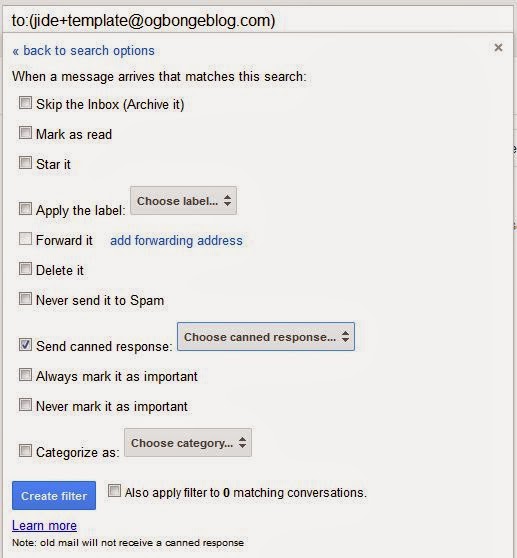
==> Click the "create filter with this search" link. A new window will come up. as seen below:


GMail filter and Canned response


==>  Tick the "send canned response" box

==> Select the desired canned response from the Choose canned response... drop-down menu

==> Click Create filter button.


That's all.


NOTE:


If you also want to use your canned response and Filter as autoresponder, fill in your email with a combination of a secret word  ( eg yourname+secretword@gmail.com) and enter it in the "To" field of the filter options as seen in the first screenshot above.


I hope this works for you.

Tuesday, 24 September 2013

How I Use Canned Responses With New GMail Compose Editor

GMail Canned Responses in combination with GMail filters allow me to automatically send SAME reply every time someone emails me with a common question or request. Without this GMail lab feature, sending same reply over and over again to bloggers that request for my free blogger template, those asking for my bank account details etc might be frustrating.


Without using filters, you can still create short messages as "canned responses", insert and send them repeatedly as replies to common questions or requests with a quick mouse click. Rather than type out the same response over and over again, canned Responses lets you type it once, save it, and then apply it to any given e-mail at any time.


In order to create and use canned responses in your mails, you have to first enable them in your GMail settings.


How To Enable Canned Responses In GMail Labs


To enable GMail canned responses, log into your GMail account on the Web,  click on the gear icon in the upper right corner of the window and select "Settings" from the drop-down menu. Click on the "Labs" tab, scroll down the list and click the "Enable" button next to the "Canned responses" by Chad P. Then, click the "Save Changes" button.


canned response


Once enabled, you can make, insert, and delete your canned responses.


How To Create Canned Response With new GMail Editor


==> Click on the "Compose" button to create a new mail. Leave the "To" and "Subject" fields blank.

==> In the body, enter the the snippet you would like to save as canned response. ( e.g Find below....)

==> If you have a signature enabled automatically, delete it unless you want it in the canned response

==> In the bottom right hand corner of the new GMail composer, you will see a very small triangle (beside the trash can).  Click on it

==> Select "Canned responses" > "New Canned Response". You'll be prompted to enter a name. Give the reply a name and click OK.


Gmail canned response menu


The response will be saved automatically and you can start inserting it in your replies or new mails.


How To Insert GMail Canned Response


Whenever you want to insert a canned response in a reply or a new mail, click the small triangle next to the trash icon in the new compose bar, select “Canned responses” and under “Insert”, select the name of the canned response you want to use. The content of the canned response will be inserted into your email exactly where your cursor was.


How To Edit GMail Canned Response


If you need to edit a canned response for any reason, insert it into the compose box, change whatever needs to be changed, and then select the name of the canned response under "Save" in the "Canned responses" menu. GMail will ask if you want to proceed with the modification. Press "OK." to overwrite your saved canned response.


How To Delete GMail Canned Response


Go to the “Canned responses” menu as explained earlier and under “Delete”, select the name of the canned response you want to delete.


Where Are Canned Messages Saved In GMail?


In drafts.


So make sure you don't delete your drafts even from your GMail apps on your mobile devices. If your GMail canned responses disappeared or are missing, you might have deleted your drafts. I always send a copy of my canned responses to myself as backup should in case I mistakenly delete them from drafts.


GMail Canned Responses Android App


You can download GMail Canned Responses app for your Android device for you to easily insert canned responses in your mail on the go. You will need to be using Canned Responses in the Web version of GMail to take advantage of the Android app's.


This canned responses certainly has wider application and I hope to explain in another article, how to use it with GMail filters. Anyway, I hope you find it useful.


If you have contributions or questions, kindly relay them via comments.


PLACE YOUR ADS HERE