Before now, promoting all my sites on YouTube was very stressful. Imagine having to create a separate Google account for every YouTube channel for my sites; which also means I have to sign in and sign out of my Google accounts for me to switch channels.
Now that YouTube integrates with Google+, you no longer have to go through such stress. You can now create up to 50 YouTube channels under one Google account and you can now use YouTube Channel switcher to switch from one channel to another without signing out of your Google account.
For you to make multiple YouTube channels on one account, all you just need to do is to ensure you have created Google+ page for all the channels you want to manage with a single Google account; and of course you must use the single Google account to create all the Google+ pages.
Once you've created the Google+ pages, sign in to
www.youtube.com with the Google account you want to use to manage all the channels.
Thereafter, go to
https://www.youtube.com/channel_switcherRight there, click on the Google+ page you want to use as YouTube Channel (Under "other Options")
Clicking on it should bring up a popup window similar to the screenshot below:
Click "
OK"
You will see another pop up similar to the one below:
Click "
OK"
Wait for some seconds.
Once successful, you might see a prompt to select the channel you want to use. Select as desired.
That's all.
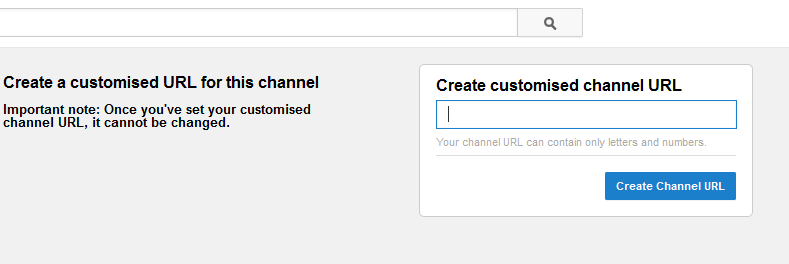
The URL of the new channel will be long. I will show you how to shorten it to something very simple in my next post.
NOTE:
==> You can always switch from one channel to another without signing out, using the
YouTube Channel Switcher.
==> If you want to add admins to the channels, add them as managers to the Google+ page used for creating the channel.
==> If you want to change the name and icon of the YouTube channels, you have to change them from the Google+ pages. This is because, once you’ve connected your YouTube channel with a Google+ page or profile: the name on your connected Google+ page or profile becomes your YouTube channel name everywhere (on videos, comments, your channel title, etc) and your Google+ page or profile photo becomes your YouTube channel icon. Google+ supports changing your name up to three times in two years. Please keep this in mind if you decide to edit your name.
You can
create a Google+ page here.
Recommended:
How To Add And Remove Managers From Google+ Page.
Cheers!