Pages

Receive More Updates

Date: - Time:
SMS: Send FOLLOW BALLOWAP To 40404 For Free - EMAIL: azeezbello8@gmail.com

Tuesday, 21 April 2015

How To Place Ad Banner Under Header of Blogger Mobile View

In this tutorial, I will explain how to place 300x250 ad banner under header of Blogger mobile view. The banner can be Google adsense ad, an affiliate program banner or a personal advert banner to promote your products and services. So, I expect you have saved the code for the banner somewhere.


You can increase your Adsense earnings by placing a 300x250 ad banner under your blog header section as explained in this post.


To get started, sign in to your Blogger account via www.blogger.com

==>  Go to your blog dashboard,click on "Template".

==> Click the settings icon under "Mobile", Select "Yes.............", choose "Custom" and Save.

==> Go back to "Template" > "Edit HTML"


==>Use CTRL F to find id='main' in the HTML


==> Edit showaddelement to yes and add maxwidgets='3' so it becomes similar to the code below:


<b:section class='main' id='main' maxwidgets='3' showaddelement='yes'>


==> Click "Save Template".


==> Go to "Layout' and you should now be able to add a gadget above the post area as seen in screenshot below.


==> Click the "add a gadget", select "HTML/Javascript"


==> Copy and paste your ad code in it and save.


==> Click the "edit" link next to the gadget


==> Click in the address bar of the gadget window and scroll to the end of the address as seen in the screenshot below:


Take note of the gadget id and close the window. In the screenshot above, the id is HTML1


==> Go to "Template" > "Edit HTML"


==> Use CTRL F to find the gadget id in your template

==> Add mobile='yes' to it so it becomes similar to the code below


<b:widget id='HTML1' locked='false' mobile='yes' title='' type='HTML'>


==> Click "Save Template"


==> Use CTRL F to find ]]></b:skin>


==> Paste the code below, directly above the ]]></b:skin>


#HTML1{

display : none;

}


@media all and (max-width: 768px)  {


#HTML1{

display : block;

}


}


Replace the gadget id with yours.

Click 'Save Template"


View your blog on mobile phone and you should see the banner displayed under the header.


I hope this works for you.


NB: If you set it to mobile='yes', it will be giving you errors while saving arrangements in the layout section.


If you need help placing Google ads on your blog, contact me. I will only charge you a token. 

Friday, 16 January 2015

How To Add Facebook Mobile Comment Form To Blogger / Blogspot Mobile View

If you've enabled custom Blogger mobile template, you can customize the mobile view of your blog as you desire. You can add and remove whatever you like in as much as you know how to go about it. Today, I have decided to share with you, how to add Facebook mobile comment form to Blogger or Blogspot mobile view.


facebook mobile comment box


To get started, I recommend you enable Custom Blogger mobile template. If you don't know how to do that, sign in to your blog, go to "Template". Click the icon under "Mobile". Select "Yes. Show mobile template on mobile devices". Select "Custom" from the drop down box and SAVE.


Next is to get your blog's Facebook APP ID handy. If you know the ID, copy it somewhere and if you've forgotten it, you can check the Facebook apps page. If you can't find it on the apps page, then you need to read how to get Facebook application ID for your blog here.


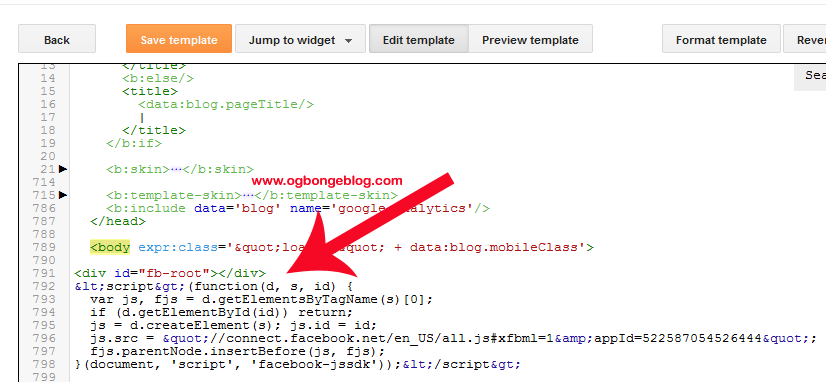
Next is to log in to your Blogger dashboard, back up your template and go to "Template" > "Edit HTML"


==> Click inside the HTML and use CTRL F to find : <body

==> Directly below it, paste <div id='fb-root'/>


==> Open a new tab on your browser and go to www.freehtmlparser.blogspot.com

==> Copy and paste the code below inside the box on the page


<script>(function(d, s, id) {

  var js, fjs = d.getElementsByTagName(s)[0];

  if (d.getElementById(id)) return;

  js = d.createElement(s); js.id = id;

  js.src = "//connect.facebook.net/en_US/sdk.js#xfbml=1&appId=1569785879914041&version=v2.0";

  fjs.parentNode.insertBefore(js, fjs);

}(document, 'script', 'facebook-jssdk'));</script>


==> Carefully replace the highlighted appID with the Facebook app ID of your blog

==> Click "Encode"


==> Go back to the browser tab where you have your blog HTML


==> Copy and Paste the encoded script directly below the  <div id='fb-root'/>


==> Now, your HTML should look similar to the screenshot below:


==> Click "Save Template"


==> Click inside the HTML and use CTRL F to find :


<b:if cond='data:top.showMobileShare'>


==> Carefully find the ending </div> as seen in the screenshot below:


==> Directly below it, copy and paste the code below:


<p align='center'>

<span style='font-size: 15px;font-weight:bold;'>Facebook Comment Box </span>

</p>

<div style='text-align: center;'>

<fb:comments expr:href='data:post.url' expr:title='data:post.title' expr:xid='data:post.id' mobile='yes' numposts='10'/>

</div>


--> Click SAVE Template.


View one of your blog posts and the comment box should appear on the mobile view,  above the Blogger comment form.


Try this and let me know if it works for you. Also leave your comments if you've questions to ask.


Note: You might not find in your template if you are using a third-party template.


Wednesday, 5 November 2014

Blogger Comment Form Not Showing On Mobile View? Try This Solution

I've been receiving mails lately from co-bloggers, complaining that their readers are finding it difficult to comment on their blog posts simply because the Blogger comment form won't display on mobile even after clicking the "post a comment" link.


This is mostly experienced on blogs that have switched to Blogger custom mobile template. Although, I don't really know what causes the problem but there is a solution, which I've decided to share with you in this post.


To fix the problem, you only have to add the css below to your Blogger blog's html. If you view your blog posts after saving the changes to your html, you should see the comment form displayed directly below each post even if the post has zero comment.


.mobile .blogger-iframe-colorize {

display: block !important;

}


.blogger-iframe-colorize {

display: block !important;

}


How Do I Add the CSS Code To My Blog?


==> Sign in to www.blogger.com and click on your blog in the dashboard

==> Back up your template. Very Important!

==> Click "Template" > "Edit HTML"

==> Click inside the HTML

==> Use CTRL F to find ]]></b:skin>

==> Paste the CSS code directly above it as seen in the screenshot below


blogger_comment_form_html_code


==> Click "Save Template"


That's all.


Try it and let me know if it works for you or not.


Cheers!

Monday, 17 March 2014

Add Adsense Below Post Title of Mobile Blogger Templates

I've customized the mobile view of OgbongeBlog in such a way that I now have an Adsense 320x50 mobile banner been displayed under post titles as well as an Adsense 250x250 ad unit been displayed at the end of each post on the mobile view.


Besides that, I created an extra section above the header region and right there, I can also add an Adsense mobile banner or a non-adsense 320x50 banner. In this tutorial, I'm sharing with you how to add Adsense ad inside blog posts of Blogger mobile templates, directly below post titles.


Just follow me through the steps.


==> Log in to www.google.com/adsense to generate the Adsense code for the ad unit you want to add to the mobile view. eg 320x50 mobile banner.


Now, we need to parse the ad code.


==> Go to http://www.freehtmlparser.blogspot.com/

==> Copy and paste your ad code inside the box and click the "Encode" button

==> Copy and paste the code somewhere eg in a notepad


==> Ensure you have enabled CUSTOM Blogger mobile template.


If not sure, login to your Blogger dashboard, go to "Template". Under "Mobile", select "Yes. Show mobile template on mobile devices" and choose "Custom" from the "choose mobile template" dropdown box and save your settings.


==> Now, we need to find the code for the Blogger Mobile Template Post title so we can place the Adsense code directly below it.


==> So, back up your template and go to "Template" > "Edit HTML"


==> Click inside the HTML and use CTRL F to find the code below:


<b:includable id='mobile-post' var='post'>


==> Once you find the code, scroll down gently till you see the code below:


<div class='post-body entry-content'
expr:id='&quot;post-body-&quot; + data:post.id'
itemprop='articleBody'>


==> Paste your parsed Adsense code directly below the code above.


Save your template.


View one of your blog posts on mobile view using default browser of your mobile device (NOT Opera Mini) and you should see the ad below the post title on POST pages (Not on the homepage).


NBYou can place any ad code there be it AdDynamo, Infolink, media.net ad etc


You can access the mobile view of your Blogger post on PC by adding ?m=1 at the end of the post URL.


Try it and let me know if it works for you.


PLEASE, Share this with your friends.


Questions? Contributions? Kindly relay them via comments.


Recommended: How to Add Adsense Below Post Titles on Blogger Desktop View

Tuesday, 11 March 2014

How To Make Adsense Show After Posts On Blogger Mobile View

Earlier, I shared a tutorial on how to add Adsense ad below post titles on Blogger mobile templates. In this tutorial, I am sharing with you, how to add Adsense ads after each blog post on the mobile view of your Blogspot blog.


Readers of your blog posts are more likely to click on ads after reading
your post. Hence, I recommend you add an ad unit right after each post.


Ads added below each post on the desktop view of your Blogger blog won't
show by default on the mobile view. You have to enable "custom" mobile
template and add the ad code to the HTML of the Blogger mobile template.


Below is a 300x250 Adsense ad showing after my blog post on the mobile view of  OgbongeBlog:


Adsense under blog post


Let's get started 


==> Log in to www.google.com/adsense to generate the Adsense code for the ad unit you want to add to the mobile view. eg 300x250 Medium Rectangle ad size.

Now, we need to parse the ad code.

==> Go to http://www.freehtmlparser.blogspot.com/
==> Copy and paste your ad code inside the box and click the "Encode" button
==> Copy and paste the code somewhere eg in a notepad

==> Ensure you have enabled CUSTOM Blogger mobile template. If not sure, login to your Blogger dashboard, go to "Template". Under "Mobile", select "Yes. Show mobile template on mobile devices" and choose "Custom" from the "choose mobile template" dropdown box and save your settings.

==> Now, we need to find the code for the Blogger Mobile Template Post title so we can place the Adsense code directly below it.

==> So, back up your template and go to "Template" > "Edit HTML"

==> Click inside the HTML and use CTRL F to find the code below:


<b:if cond='data:top.showMobileShare'>


==> Directly above it, paste the parsed Adsense code.


Save your template.


View one of your blog
posts on mobile view using default browser of your mobile device (NOT
Opera Mini) and you should see the ad after each blog post on POST pages
(Not on the homepage).


NBYou can place any ad code there be it AdDynamo, Infolink, media.net ad etc If you also want to add share buttons to your Blogger mobile template, you can also paste the codes of the buttons there.


You can access the mobile view of your Blogger post on PC by adding ?m=1 at the end of the post URL.


Try it and let me know if it works for you.


PLEASE, Share this with your friends.


Questions? Contributions? Kindly relay them via comments.


Recommended: How to Add Adsense Below Post Titles on Blogger Desktop View

Saturday, 1 March 2014

How To Show Any Gadget on Blogger Mobile Template

If you configure your Blogger blog to show mobile template on mobile devices, the widgets listed below are the ones that are displayed by default:


  • Header

  • Blog

  • Profile

  • PageList

  • AdSense

  • Attribution


If you want any other Blogger widget to display on the mobile view of your Blogger blog, you will have to activate a "custom" mobile template instead of using one of the default Blogger mobile templates.


In addition to that, you will have to add mobile=’yes’ attribute to the <b:widget> tag of the widget, right inside your blog's html.


The "mobile" attribute lets you control which of the widgets on your Blogger blog will be available in mobile view. It can be 'default', 'yes', 'no', or 'only'.


Now, let's assume you have used the HTML/Javascript gadget to add an advert to your Blogger blog and you want it to display on the mobile view of your blog. Just follow me through the steps below:


IMPORTANT: First ensure you have enabled Blogger mobile template and have switched to "Custom" as explained here


==> Now, you need to get the id of the widget as highlighted below:


As seen above, the id of the widget is HTML31.


You can read: how to get id of any Blogger widget if you don't know how to go about it.


==> Next, is to go to "Template" > "Edit HTML"


==> Click on "Jump To Widget" and click on the id of the widget you want to show on the mobile view of your blog. This will take you directly to the <b:widget> tag of the widget.


eg  


<b:widget id='HTML31' locked='false' title='' type='HTML'>....</b:widget>


==> Click inside the tag and type mobile='yes'


Your new code should now like like this:


<b:widget id='HTML31' locked='false'  mobile='yes'  title='' type='HTML'>....</b:widget> 


==> Click "Save Template"


That's all.


You can now view the mobile view of your blog by adding ?m=1 to your blog's URL eg www.ogbongeblog.com?m=1 and you should see the widget been displayed.


Let me know if this works for you.


Subscribe to this blog, if you don't want to miss my tutorial on how to display Google ads inside posts on Blogger mobile view.


Recommended: How To Make BlogSpot Blog Compatible With Mobile Phones 


Please, SHARE this tutorial with your friends.  


Cheers!

How To Stop Any Gadget From Showing on Blogger Mobile View

Earlier, I shared with you, how to show gadgets on Blogger mobile template. In the tutorial, I listed the widgets that appear by default once you configure your Blogger blog to show mobile template on mobile devices. If you don't want some of the widgets (eg Attribution) to display on the mobile view of your blog, you can easily remove them using the "mobile" attribute.


Remember, the "mobile" attribute lets you control which of the widgets on your Blogger blog will be available in mobile view and it can be 'default', 'yes', 'no', or 'only'. Hence, by adding mobile=’no’ attribute to the <b:widget> tag of the widget, right inside your blog's html, you can easily stop such widget from displaying on the mobile view of your blog


.....but


this will NOT work unless you have switched from default Blogger mobile template to "custom" Blogger mobile template.


As an example, let me assume you want to stop the "Powered by Blogger" (Attribution) from showing in the footer of the mobile view of your blog. Just follow me through the steps below:


IMPORTANT: First ensure you have enabled Blogger mobile template and have switched to "Custom" as explained here.


Now, you need to get the id of the widget. You can read: how to get id of any Blogger widget if you don't know how to go about it.


==> Next, is to go to "Template" > "Edit HTML"


==> Click on "Jump To Widget" and click on the id of the widget you want to stop from showing on the mobile view of your blog. This will take you directly to the <b:widget> tag of the widget.


In this example, "Attribution1" is the id of the Attribution widget on my blog. Hence, it's code will look like this:


 <b:widget id='Attribution1' locked='false' title='' type='Attribution'>...</b:widget>


==> Click inside the tag and type mobile='no'


The new code should now like like this:


<b:widget id='Attribution1' locked='false' mobile="no" title='' type='Attribution'>...</b:widget>


==> Click "Save Template"


That's all.


You can now view the mobile view of your blog by adding ?m=1 to your blog's URL eg www.ogbongeblog.com?m=1 and you should no longer see the widget been displayed.


Let me know if this works for you.


Subscribe to this blog, if you don't want to miss my tutorial on how to display Google ads inside posts on Blogger mobile view.


Please, SHARE this tutorial with your friends. 


Cheers!

Wednesday, 9 October 2013

How To Make Blogspot Blog Compatible With Mobile Phones

With the rise and prominence of mobile web browsing, bloggers are making sure their blogs are mobile friendly. If the desktop view of your blog is what your blog readers see on their mobile phones, then you need to Go Mobile!


It will take much longer to load your blog on smartphones which in turn, might be frustrating your blog readers if you've not optimized your blog for mobile screens. Now, when it comes to making a blog hosted on blogger mobile friendly, all you just need to do is to enable a blogger mobile template for your blog.


Mobile templates will re-format your blogs for smartphones to enhance your readers’ viewing experience. Once enabled, your blogspot blog will automatically be redirected to the mobile view when accessed from a smartphone. The Blogger mobile templates support mobile ads and allow readers to make comments and watch videos.


blogger mobile view


How Can I Create Mobile Friendly Blogspot Blog?


To make your Blogger blog to be mobile friendly, simply login to your blog dashboard and go to > Template. Click on the gear icon beneath the mobile template preview. Then, select the "Yes. Show mobile template on mobile devices." option. Choose a mobile template and then save settings.


blogger mobile template settings


Your blog readers will now be seeing the Blogger mobile view of your blog whenever they access your blog with a smartphone.


Can I Customize The Mobile View of My Blogspot Blog?


Yes, if you select the "custom" mobile template.


By default Blogger have provided only 8 mobile templates which you can NOT edit as you desired. To edit the mobile view of your blogspot blog, you must activate the custom mobile template. I will discuss this further in another blog post.


NOTE:


==> Adsense mobile ads will show on the Blogger default mobile templates if you've added, at least one of your Google ad units on your blog, using the ADSENSE GADGET OR if you have configured your blog to display inline ads.


==> Header, Blog, Profile (About Me), AdSense, and Attribution gadgets display by default on Blogger mobile templates.


Happy Mobifying!


Sunday, 1 September 2013

How To Place Personal Advert Banners on Blogger Mobile View

In continuation of the series of tutorials on the customization of Blogger custom mobile view, I have decided to share with you today, how to place advertisement on the mobile view of your blogspot blog.


Placing advert banners of sites, events, businesses etc on the mobile view of your blog can be generating extra income for you online especially if you are able to get advertisers that will be willing to market their product and services to mobile users.


Some advertisers will even be more willing to buy advert spaces on your blog if you let them know that their adverts will display both on the mobile and desktop view of your blog.


How To Get Started


==> Learn how to generate banners online here if you don't have your ad banner handy. Just make sure the width of your ad banner is not more than 300px. 300x50 and 300x250 ad banners are recommended for mobile sites.


Now, let me assume you've saved your ad banner on your PC. You can add it to your Blogger blog using the "Image" gadget or the "HTML/Javascript" gadget.


==> Log in to your Blogger dashboard, go to "Layout" and click on "Add a gadget"


*** If you want it to appear at the top of your mobile view, add the gadget to the header section. If you want it down the mobile view, add it to the sidebar or footer section.


Using HTML/Javascript Gadget


If you want to use the "HTML/Javascript" gadget (recommended), upload your banner somewhere, copy the image code and paste it in the gadget. The code for your banner should be similar to the one below:


<a href="http://www.ogbongeblog.com/p/advertise.html" target="_blank"><img border="0"  src="https://blogger.googleusercontent.com/img/b/R29vZ2xl/AVvXsEiwl6rtP9xqS3Qlqv6xG_9AaTcqT2xAMpNRiRnHPDOxqhItzSyJmiyeSFJodbOK-zOquzwtWNAMLdNLdDGorcb-VzxrXwXSoOeA_TctH-V8zypwdMcFIN8P9BoCEZY_JL9lserYOOU96Bmw/s1600/advertise+here.png" width="300px" height="250px"/></a>


You can read how to use Blogger.com to host your banners here.


Using "Image" Gadget


If you want to use the "Image" gadget, browse your computer for the banner, upload it, then add the URL of where it will link to in the space provided.


Ensure the banner fits in perfectly into the section you are adding it to. i.e do not add 300x50 ad banner to your sidebar which is just 120px in width.


What Next?


==> After adding the banner to your blog, click the "edit" link under "HTML" or "Image" gadget. Get the widget ID (eg HTML10 or Image1) from the URL bar as seen in the screenshot below and take note of it.


==> Go to "Template". Under "Mobile", select "Yes. Show mobile template on mobile devices" and choose "Custom" from the "choose mobile template" dropdown box.


==> Save your settings.


Now, we need to activate the Banner to be displayed on the Blogger mobile view.


==> Go to "Template" > "Edit HTML"


==> Click on the "Jump to Widget" tab and click on the widgetID of the banner you added to your blog earlier. This will take you to the code of the widget in your HTML.


==> Add mobile='yes' to the line of code as seen in the screenshot below:


==> SAVE your template.


View the mobile view of your blog by adding ?m=1 to your blog address eg www.ogbongeblog.com?m=1 and you should see the Banner been displayed on the mobile view.


NOTE


If you want it to display ONLY on the mobile view and not on the desktop view, use mobile='only' but if you do this, you will keep seeing an error message anytime you want to re-arrange the widgets on your blog layout.


Please, relay your comments, contribution etc via the comment form below.


Don't forget to share this with your friends.


You might be interested in "how to place Advertise Here banners on Blogspot blogs" and you can read more Blogger tips here.

Thursday, 29 August 2013

How To Make Related Posts To Show On Blogger Mobile View

After showcasing the redesigned mobile view of Ogbongeblog yesterday when I published "how to make addynamo ads appear on blogger mobile view", I have received mails from some blogspot users, asking me how I make the related posts widget to appear on the mobile view of my blogger blog.


Well, you can get it done if you've switched to blogger custom mobile template and would be easier for you if you've installed my related posts widget to your blog. All you will just need to do is to carefully add some few lines of code to your blog's html.


How To Get Started


==> Click here to install my related posts widget


*** Change the width in the css from 350px to 300px; perfect for the screen of most mobile phones.


==> If you have not enabled custom mobile template, login to your Blogger dashboard, go to "Template". Under "Mobile", select "Yes. Show mobile template on mobile devices" and choose "Custom" from the "choose mobile template" dropdown box and save your settings.


==> Now, we need to find the code for the default mobile share buttons so we can place the related posts gadget directly below it.


==> So, back up your template and go to "Template" > "Edit HTML"


==> Click inside the HTML and use CTRL F to find <b:if cond='data:top.showMobileShare'>


==> Carefully find the ending </div> as seen in the screenshot below


==> Directly below it, copy and paste the code below:


<br>

<div style='float:left;'>

<!-- Related Posts with Thumbnails Code Start-->

<b:if cond='data:blog.pageType == &quot;item&quot;'>

<div id='related-posts'>

<font
face='Arial' size='3'><b>Related Posts:
</b></font><font
color='#FFFFFF'><b:loop values='data:post.labels'
var='label'><data:label.name/><b:if
cond='data:label.isLast !=
&quot;true&quot;'>,</b:if><b:if
cond='data:blog.pageType == &quot;item&quot;'>


<script
expr:src='&quot;/feeds/posts/default/-/&quot; +
data:label.name +
&quot;?alt=json-in-script&amp;callback=related_results_labels&amp;max-results=5&quot;'

type='text/javascript'/></b:if></b:loop>
</font>


<script type='text/javascript'> removeRelatedDuplicates(); printRelatedLabels();

</script>

</div>

</b:if>

<!-- Related Posts with Thumbnails Code End-->

  </div></br>


==> Save your template


==> View any blog post that has labels and you should see related posts links appearing right below the mobile share buttons.


Note: If you did not add a label (category) to a post, you might not see the related posts below it.


Did it work for you? Please, let me hear from you via comments.

Wednesday, 28 August 2013

How To Make Ad Dynamo Advert Appear On Blogger Mobile View

Recently, I redesigned the mobile view of ogbongeblog using the blogger mobile template. One of the changes was enabling Addynamo mobile ad unit to appear whenever you view my blog on a small screen especially on opera mini browser.


I decided to do this as an alternative to monetizing my Opera Mini blog's traffic since Google ads still refuse to be displayed on Opera Mini without using mobstac.


If you are interested in making addynamo adverts to appear on the mobile view of your blogspot blog, follow the steps below:


==> Log in to your ad dynamo account to generate the code for the mobile ad unit.


*** If you want to get the code for "300x50" mobile ad unit, make sure you click the "mobile" tab before clicking the "New Channel" button. You can also try the "300x250" ad unit from the "Web" tab.


==> Log in to your blogger dashboard, go to "Layout" and click on "Add a gadget".


*** If you want it to appear at the top of your mobile view, add the gadget to the header section. If you want it down the mobile view, add  it to the sidebar or footer section.


==> Select the "HTML/Javascript" gadget, copy and paste the Ad dynamo ad code into the box, then SAVE.


==> After saving, click the "edit" link under the Addynamo widget. Get the widget ID (eg HTML13) from the URL bar as seen in the screenshot below and take note of it.


==> Go to "Template". Under "Mobile", select "Yes. Show mobile template on mobile devices" and choose "Custom" from the "choose mobile template" dropdown box.


==> Save your settings.


Now, we need to activate the Addynamo ad to be displayed on the Blogger mobile view.


==> Go to "Template" > "Edit HTML"


==> Click on the "Jump to Widget" tab and click on the widgetID of the Addynamo unit you added to your blog earlier. This will take you to the code of the widget in your HTML.


==> Add mobile='yes' to the line of code as seen in the screenshot below.


==> SAVE your template.


View the mobile view of your blog by adding ?m=1 to your blog address eg www.ogbongeblog.com?m=1 and you should see the Addynamo ad been displayed on the mobile view.


NOTE


If you want it to display ONLY on the mobile view and not on the desktop view, use mobile='only' but if you do this, you will keep seeing an error message anytime you want to re-arrange the widgets on your blog layout.


Please, relay your comments, contribution etc via the comment form below.


Do not forget to share this with your friends.


You can read more Addynamo tips here


PLACE YOUR ADS HERE