




http://www.youtube.com/channel/UCqYsQpcOL_oddDxIpAa9YZg
You can see that it is quite complicated and hard to remember. If you'd like a simpler URL, you can add a custom URL to your Channel. To add a custom URL, follow me through the steps below:
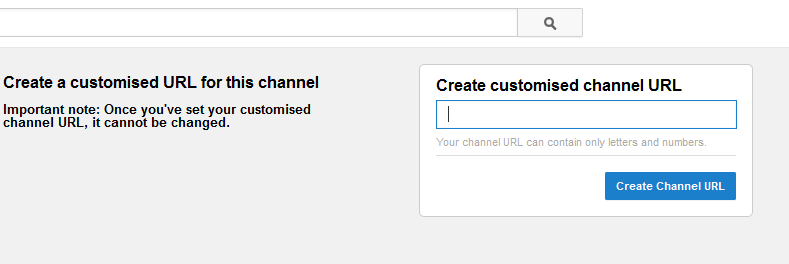
- Make sure you're signed into YouTube, and go to your advanced account settings here.
- Under Channel Settings, click Create customised URL.
- You'll then be able to choose the URL you want. Note that you can't choose a URL that someone's already chosen. Once you've chosen your custom URL, it will appear like this:
http://www.youtube.com/user/CUSTOMURL

Once your channel has a custom URL, it can't be changed. Choose carefully!
NOTE:
If you had or have a traditional YouTube username on your channel, then you unfortunately can't add a custom URL or change your URL. Your channel already has a URL associated with your old username, like the following:
http://www.youtube.com/user/USERNAME
I hope this helps.
Kindly follow OgbongeBlog Videos at : https://www.youtube.com/user/ogbongeblogvideos


No comments:
Post a Comment